
Shared Content
Only article, event, person, and book content types that are part of the A&S Department Theme will work with content sharing. Content from The Record, The Source, WashU Sites, and custom A&S research sites cannot be shared.
Shared Content is the ability to share certain content types (article, event, person, and book) between Arts & Sciences departments and centers. Each piece of content has a 'home' department which is where it was created. If the content is marked shared by its owner, then it will become available for you to import into your website. If the home department makes updates or edits to a piece of their shared content, the changes will be reflected in that piece of content on all of the websites that imported it.
If you would like to add a piece of content from a Washington University site that does not participate in our content-sharing such as The Record, The Source, WashU Sites, and custom A&S research sites, you can still add it by using the direct link field to paste in the URL of the content. For example, if you wanted to add an article from The Record to your website, you would create a new article and then put the URL of the article in the direct link field.
To make your content available to share with other departments, you first have to turn on 'sharing'.
- Log in to edit the piece of content you want to share.
- Scroll to the bottom of the page and turn on the 'shared content' toggle. This will add your content to the list of items that are available for other sites in the Arts & Sciences theme to download.

To see the shared content overview page, click on the 'shared content' tab in the menu.

This will allow you to see a list of all of the shared content available to import into your website.
To add a piece of content to your website, you will need to import it.
- Go to the 'shared content' tab in your admin menu
- Once you have found a piece of content to import, click the checkbox next to your chosen content. You can import multiple pieces of content at once.
- Click the 'import' button to confirm that you want to add this piece of content to your website.
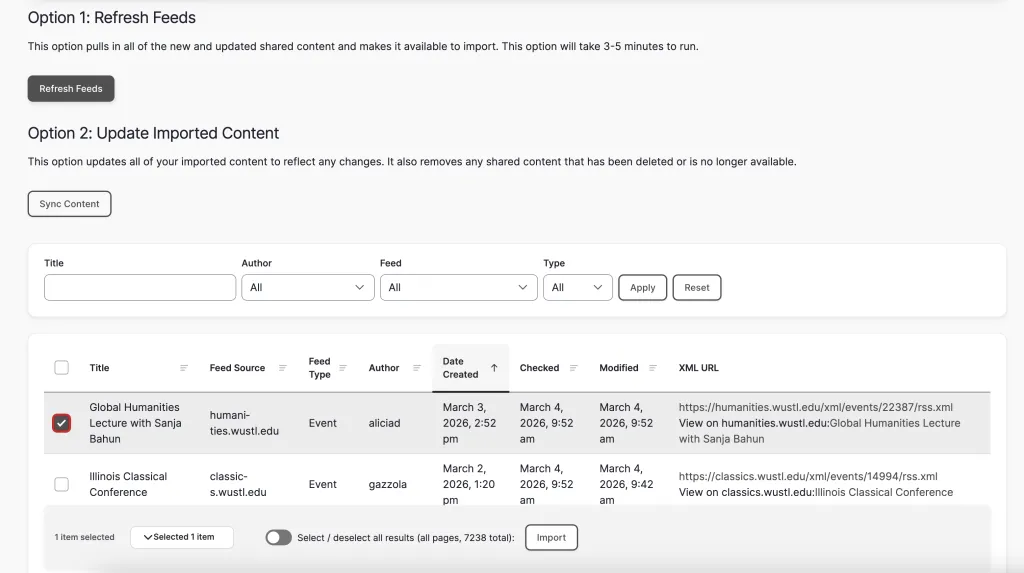
Feeds will automatically update to show new and updated shared content at various times throughout the day. However, if you would like to update the feeds manually, you have two options:
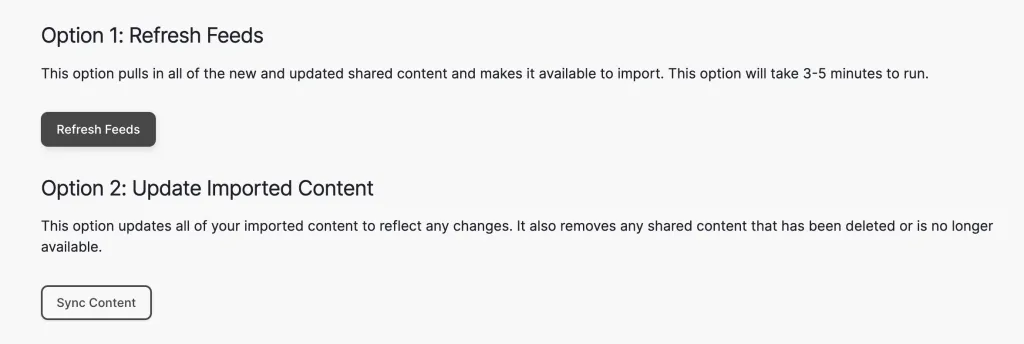
Option 1: Refresh Feeds This option pulls in all of the new and updated shared content and makes it available to import. This option will take 3-5 minutes to run.
Option 2: Update Imported Content This option updates all of your imported content to reflect any changes. It also removes any shared content that has been deleted or is no longer available.
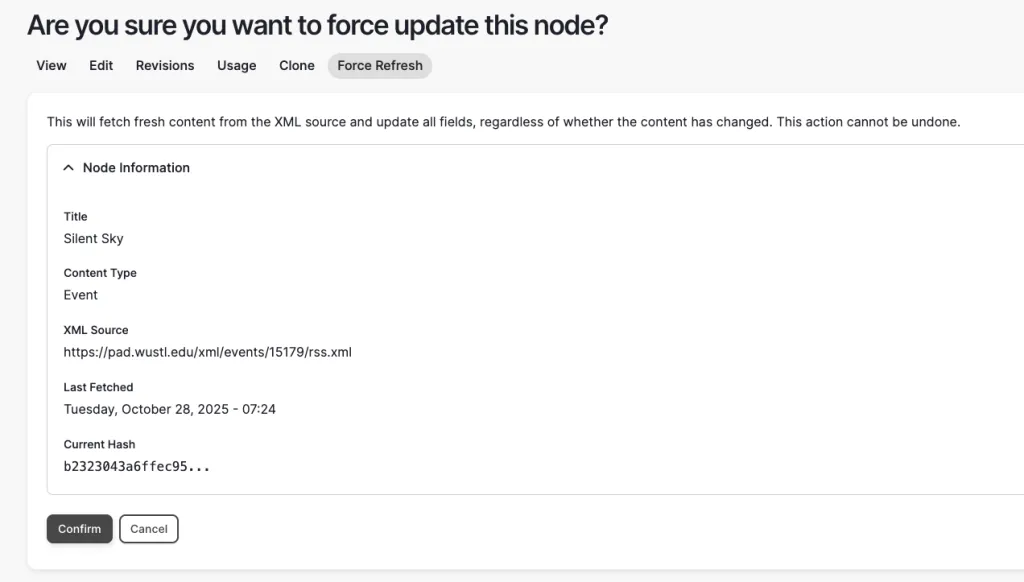
When the originating website makes edits to a piece of content that you have imported, those changes will automatically update on your website every twelve hours. To force the content to update sooner, follow these steps:
- Edit the imported content
- Navigate to the "Force Refresh" tab
- Select "Confirm."
When imported shared content gets deleted or is no longer available from the originating site, it will get deleted from your site when the feeds automatically update throughout the day. You can also click the 'sync content' button at the top of the Shared Content page if you would like for that to happen immediately.
Shared Content FAQ
Only article, event, person, and book content types that are part of the A&S Department Theme will work with content sharing. Content from The Record, The Source, WashU Sites, and custom A&S research sites cannot be shared.
If you would like to add an article from a Washington University site that does not participate in our content-sharing, please refer to our Adding an External Article documentation.
No, they will not be able to change any of the content you created.
The importing department will only be able to edit the following:
Articles
- Feature on News Landing Page toggle
- Feature on Home Page toggle
- Reverse header toggle
- Tag with taxonomy terms
- Tag people so the article will display on their long person profile
Events
- Feature on News Landing Page toggle
- Feature on Home Page toggle
- Tag with taxonomy terms
Person
- Tag with Type of Person taxonomy terms
- If the two-sided People Landing page filter is in use, you will be able to tag profiles with the Area of Interest taxonomy terms
Books
- Byline options (by, edited by, traslated by)
- Byline names
- Book categories
- Tag people so the book will display on their long person profile
Imported books will automatically display on the faculty bookshelf as long as you are not restricting the bookshelf to only show a certain category.
For the book to display on a faculty member's profile page
- Edit the imported book
- Enter the person's name in the "Faculty and Staff" field
- Save
For more information about books, please see our Book documentation.